Blog article
Seedance 3 Prompt Guide: Examples for Better AI Videos
Master Seedance 3 prompts with proven formulas and copy-ready examples for text-to-video and image-to-video. Remix community prompts and generate faster.
Omnihuman 2.0 turns one portrait image and one audio track into a lip-synced digital human video. The portrait defines the person, while the audio controls the speaking rhythm, facial expression, and mouth movement. The finished clip follows the length of the uploaded audio, making the workflow useful for short social videos, product explainers, corporate presentations, courses, and other scripted talking-head content.
Quick answer: choose a clear frontal portrait, prepare a clean WAV or MP3 voice track, optionally describe the shot, and generate a 720p video with adaptive framing.
What Omnihuman 2.0 does
Omnihuman 2.0 is designed for a focused job: bringing a still portrait to life with a prepared voice track. It is not a text-only scene generator and it is not a full replacement for editing a long film. It works best when you already know who should appear, what should be said, and how the final video will be used.
The workflow is particularly useful when production speed matters:
- A creator already has a presenter photo and a recorded voice-over.
- A brand needs several product or spokesperson clips without arranging a studio session for every script.
- A teacher wants a consistent presenter image across a series of lessons.
- A social team needs short talking-head clips for multiple channels.
You can try the complete workflow in the Omnihuman 2.0 digital human generator, or review finished examples in the Omnihuman community showcase.
What you need before you start
1. A suitable portrait
Use one clear, front-facing image with even lighting and a visible face. A simple background usually makes the result easier to read. Avoid extreme angles, heavy filters, partial face coverage, and images where the mouth or chin is hidden.
The current input limit is 30 MB for one portrait image. Resolution matters, but a sharp, natural source image is usually more valuable than an over-retouched image.
2. A voice track
The audio drives the performance. Prepare a clean WAV or MP3 file without music, room echo, clipping, or long silences. The current workflow accepts audio from 4 to 300 seconds, with a maximum file size of 15 MB.
A clean voice recording produces more reliable mouth movement than a heavily compressed clip with background noise.
3. An optional prompt
The prompt is optional and supports up to 300 characters. Use it to describe framing, subtle motion, camera behavior, or the environment rather than repeating information that is already visible in the portrait.
Three-step workflow
Step 1: Upload the portrait
Choose the image that should become the presenter. Check the face, framing, and background before uploading. If the image is vertical, the final composition will generally work better for social video; a wider image is often better for websites and presentations.
Step 2: Upload the driving audio
Select a WAV or MP3 voice track. The generated video length follows this audio, so review the script and timing before generation. A concise 10-30 second clip is often enough for social content, while longer tracks can support lessons or detailed explainers.
Step 3: Describe the shot and generate
Use a short prompt to guide the visual result. For example:
Fixed chest-up framing in a bright modern office, natural facial expression, subtle head movement, soft window light, realistic lip sync, no camera cuts.
After generation, review the lip sync, facial expression, framing, and whether the visual atmosphere matches the intended use. If necessary, adjust the portrait, audio, or prompt and generate another version.
Prompt structure that works
A practical Omnihuman prompt can follow this order:
1. Shot and framing: chest-up, medium close-up, portrait orientation.
2. Setting: office, studio, outdoor garden, store, or classroom.
3. Lighting: soft window light, clean studio light, natural daylight.
4. Motion: subtle head movement, relaxed expression, small gesture.
5. Camera: fixed camera or slow push-in.
6. Quality guidance: realistic lip sync, stable face, no cuts.
Keep the prompt focused. Contradictory camera directions or very long descriptions make it harder to preserve a stable result.
Three practical use cases
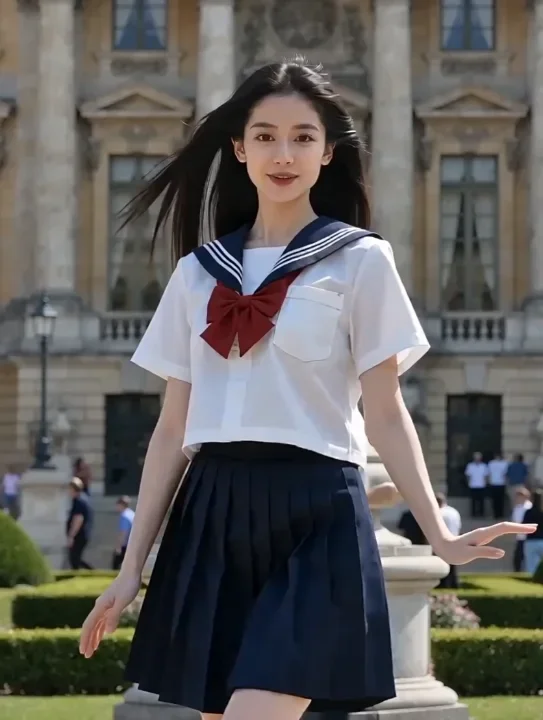
Social media presenting
A lifestyle portrait can become a natural short-form presenter video for travel stories, personal-brand content, or social updates. Use a vertical portrait, natural daylight, and a fixed camera. Keep the first sentence direct so the video has a clear reason to keep watching.
!Omnihuman social media presenter example showing a woman speaking outdoors
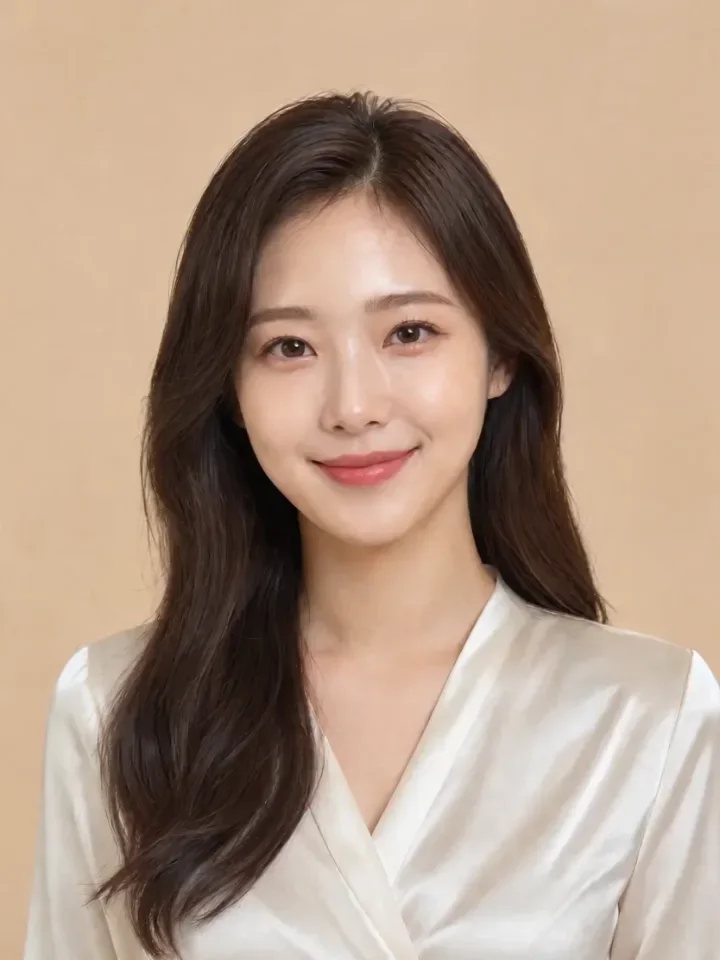
E-commerce and beauty product explanations
For product content, use clean lighting and a stable chest-up composition. A strong script moves from customer need to product benefit, then to a short call to action. A warm studio background can make beauty and lifestyle products feel more premium.
!Omnihuman e-commerce beauty presenter example in a warm studio
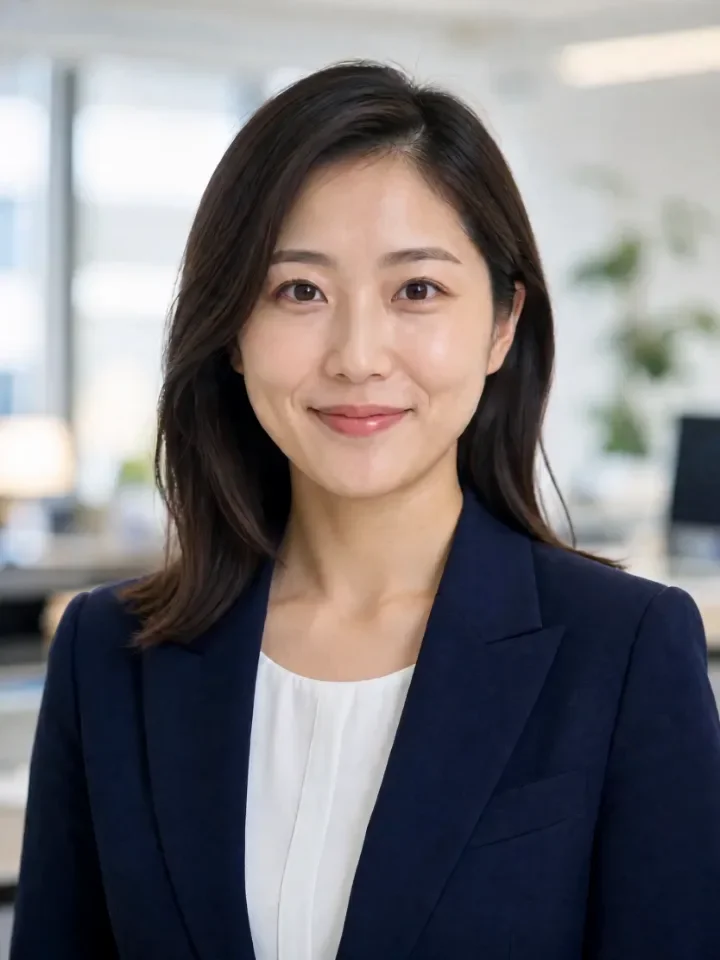
Corporate and course presenting
Corporate videos benefit from restrained motion, clean framing, and a calm delivery. Use an office or studio background, soft window light, and a script that clearly explains the topic. This format can support company introductions, product walkthroughs, internal training, and course lessons.
!Omnihuman corporate presenter example with a professional office background
How to make the result look more natural
- Use a portrait where the subject is relaxed rather than frozen in an exaggerated expression.
- Record the voice in a quiet room and remove background music before generation.
- Match the image framing to the final platform.
- Keep hand gestures and camera motion subtle.
- Avoid asking the model to create large body movement from a close-up portrait.
- Review one short clip before producing a longer batch.
Natural results come from good inputs and restrained instructions. The audio should sound like a real person speaking, and the portrait should allow the face to remain clear throughout the clip.
Common mistakes to avoid
- Uploading a low-resolution or heavily filtered portrait.
- Using audio with strong echo, clipping, or long pauses.
- Writing a prompt that conflicts with the image framing.
- Expecting a single close-up portrait to produce a full-body scene.
- Using a person's image or voice without permission.
Only generate digital human videos from images and audio that you have the right to use. When the content represents a real person, obtain consent and avoid presenting generated material in a misleading way.
Frequently asked questions
What inputs does Omnihuman 2.0 need?
One portrait image and one audio track. The prompt is optional.
How long can the video be?
The output follows the uploaded audio. The current workflow accepts audio from 4 to 300 seconds.
What resolution is available?
The current output is 720p with adaptive framing.
Can I use a photo from a phone?
Yes, if the face is clear, the image is sharp, and the lighting is relatively even. A simple background usually works better than a busy scene.
Can I make a video in a different language?
Yes. The speaking language is determined by the audio track you provide.
Where can I see more examples?
Browse the Omnihuman community collection for social, e-commerce, and corporate examples made with the same general workflow.
Start with a clear portrait and a clean voice track
Omnihuman 2.0 is most effective when the inputs are simple and intentional. Choose a sharp portrait, prepare a clean voice track, describe only the details that matter, and review the result before producing more variations.
Ready to create a digital human video? Open the Omnihuman 2.0 generator, upload a portrait and audio track, and build your first clip. For more production references, explore the Seedance community and compare how different framing, lighting, and script structures change the final result.